2026 Home-Schooling Privacy Audit: Hardening Google Workspace for Gen Alpha
Discover the essential nine-step privacy audit to fortify your homeschooling setup on Google Workspace for Education, ensuring Gen Alpha students' data remains secure and private.
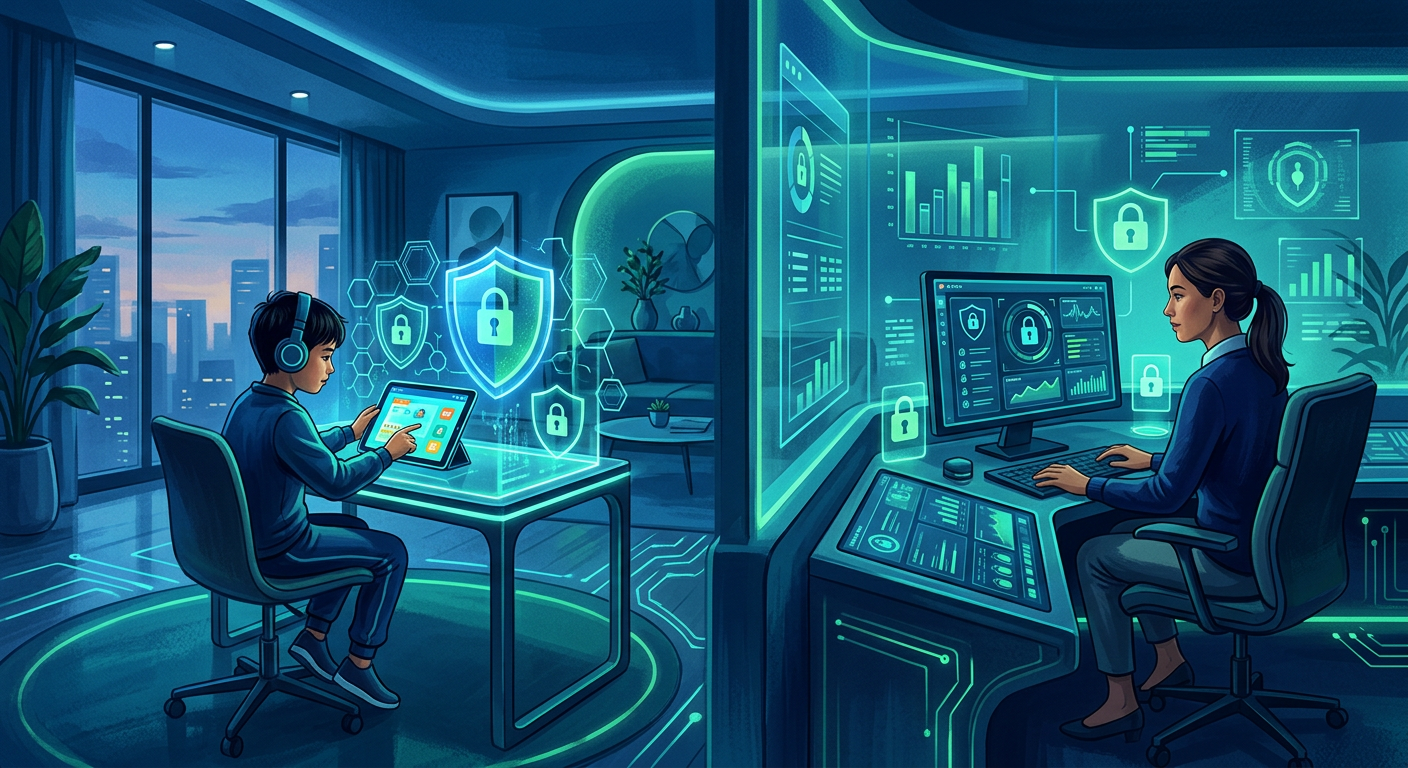
The digital landscape for our children is evolving at breakneck speed, and with the widespread adoption of Google Workspace for Education in homeschooling environments, privacy and security are no longer optional – they are paramount. As we approach 2026, Gen Alpha students, born into an always-on world, are increasingly interacting with cloud-based tools for their learning. This demands a proactive approach to hardening Google Workspace for Education to safeguard their sensitive data. A robust 2026 Home-Schooling Privacy Audit is not just a recommendation; it's an essential framework for peace of mind and responsible digital parenting.
✅ Step 1: Why is a 2026 Google Workspace Privacy Audit Necessary for Homeschooling?
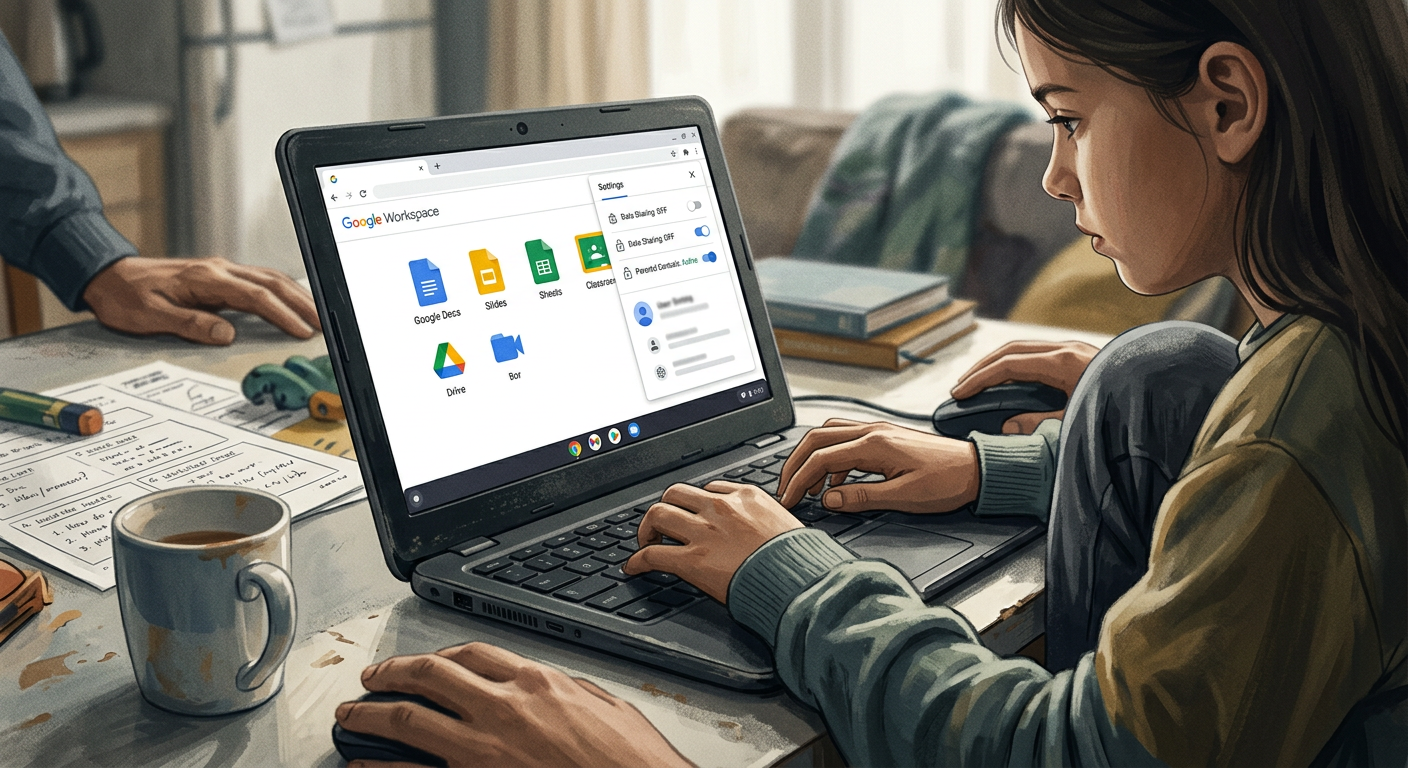
Homeschooling has seen a significant surge, particularly since 2020, with millions of families now relying on digital platforms for educational delivery. Google Workspace for Education (formerly G Suite for Education) offers powerful tools like Gmail, Google Docs, Google Classroom, and Google Meet, making it an invaluable asset for collaborative learning. However, these tools collect and process a considerable amount of student data, from academic progress and communication logs to personal identifiers. Without proper configuration and regular auditing, this data can be vulnerable to breaches, misuse, or unintended sharing. A dedicated 2026 audit helps families identify and mitigate these risks, ensuring compliance with evolving privacy regulations like COPPA (Children's Online Privacy Protection Act) and FERPA (Family Educational Rights and Privacy Act) in the United States, or GDPR (General Data Protection Regulation) in Europe, which, while not always directly applicable to individual homeschooling setups, provide excellent benchmarks for best practices.
Why the Urgency for 2026?
Digital threats are constantly evolving. What was secure in 2023 might have vulnerabilities by 2026. New AI-driven tools integrated into platforms like Google Workspace could introduce new data handling complexities. Regular audits are crucial for staying ahead of these changes.
🛠️ Step 2: How to Configure Google Admin Console for Enhanced Privacy?
The Google Admin Console is the central hub for managing your Google Workspace for Education domain. It’s where you control user access, security settings, and data policies. Many homeschooling parents might overlook the granular control available here, often sticking to default settings. However, default settings are rarely optimized for maximum privacy. Start by limiting data collection and sharing wherever possible. Navigate to the "Security" section to review data regions and data governance settings. Ensure that "Data Loss Prevention (DLP)" is enabled if available for your tier, to prevent sensitive information from being shared outside your domain. Review the "App access control" to limit third-party application integrations that might have excessive data permissions.
Key Areas to Focus On in Admin Console:
- User Management: Regularly review active user accounts. Delete or suspend accounts for students who are no longer using the platform.
- Security Settings: Implement strong password policies and enforce
2-Step Verification (2SV)for all administrative accounts. - Reporting: Understand the audit logs. While complex, these logs can reveal unusual activity.
🔒 Step 3: What are Best Practices for User Account Security and Password Management?
User accounts are often the weakest link in any security chain. For Gen Alpha students, who may be new to digital responsibility, establishing strong password habits and understanding the importance of account security is vital. Enforce unique, complex passwords that are not easily guessable. For younger students, consider using a password manager together or devising a secure, memorable system. Crucially, enable 2-Step Verification (2SV) (also known as two-factor authentication or 2FA) for all accounts, especially for any parent or administrator accounts. This adds an extra layer of security by requiring a second form of verification, such as a code from a phone, in addition to the password. This significantly reduces the risk of unauthorized access even if a password is compromised.
- [ ] Enforce strong password policies: minimum length, mixed characters.
- [ ] Implement 2-Step Verification (2SV): required for all accounts.
- [ ] Educate students on phishing scams: recognize suspicious emails or links.
- [ ] Regularly review inactive accounts: disable or delete those no longer in use.
🌐 Step 4: How Can I Limit Data Sharing with Third-Party Applications?
Many educational apps integrate seamlessly with Google Workspace, offering expanded functionality. However, each integration is a potential vector for data leakage. When a third-party app requests access to your Google account, it often asks for permissions to view or manage data. Always review these permissions carefully. Limit access to only what is absolutely necessary for the app to function. In the Google Admin Console, navigate to "Security" -> "API controls" -> "App access control" to review and manage connected apps. You can block or unblock specific apps for your domain. For homeschooling, it's generally best to be highly restrictive and only allow well-vetted, reputable educational tools.
Evaluating Third-Party Apps:
| Criterion | Description | Recommendation |
|---|---|---|
| Data Policy | Does the app have a clear, easy-to-understand privacy policy? | Look for policies explicitly stating no data selling or aggressive tracking. |
| Permissions | What data does the app request access to (e.g., Contacts, Drive, Gmail)? | Grant least privilege; only essential data. |
| Reputation | What do reviews or trusted sources say about the app's security? | Prioritize apps with strong privacy reputations and positive security audits. |
| Compliance | Does the app claim compliance with COPPA, GDPR, or similar standards? | A strong indicator of privacy-focused development. |
📊 Step 5: What Privacy Settings Should Be Reviewed in Google Classroom and Meet?
Google Classroom and Google Meet are core components for many homeschooling families. Within Google Classroom, ensure that student work is not inadvertently shared publicly. Review class settings to control who can post, comment, or view class streams. For Google Meet, control recording permissions strictly. Only allow the host (parent/teacher) to record meetings, and ensure students understand when recording is active. Turn off chat and screen sharing for younger students if not essential for the lesson. Always use a Meet nickname or unique meeting code rather than a personal meeting link to prevent uninvited guests. Encourage students to use appropriate backgrounds and keep personal information out of view during video calls.
📧 Step 6: How to Manage Gmail and Google Drive Privacy for Students?
Gmail accounts for students should be configured with strict spam filters and content policies. Consider disabling Smart Features and Personalization within Gmail settings for student accounts to minimize data analysis. For Google Drive, emphasize the importance of organizing files into shared drives (if applicable) rather than personal drives for collaborative work, and educate on appropriate sharing settings. By default, ensure files are not shared publicly or broadly within your domain unless explicitly required. Regularly audit shared files for sensitive information. Teach students to double-check who they are sharing documents with before clicking 'Send' or 'Share'.
⚠️ Watch out: Unchecked Drive sharing can lead to inadvertent exposure of private information. Always default to the most restrictive sharing settings and only expand as needed.
📝 Step 7: How Can I Monitor and Audit Student Activity Logins and Usage?
Regular monitoring of student activity within Google Workspace can provide early warnings for potential issues. The Google Admin Console offers audit logs for various services, including login activity, Drive activity, and admin activity. While this might seem overwhelming, focusing on unusual login locations, repeated failed logins, or suspicious file access attempts can be highly effective. Set up alerts for critical security events. Educate students on what constitutes safe online behavior and encourage them to report anything suspicious to you. This builds a culture of vigilance and shared responsibility for digital security.
Areas to Monitor:
- Login Logs: Check for logins from unusual geographical locations or at odd hours.
- Drive Audit Logs: Review who accessed, modified, or shared sensitive documents.
- Gmail Audit Logs: Look for high volumes of external emails from student accounts or unusual patterns.
🛡️ Step 8: What Advanced Security Features in Google Workspace Should I Use?
Google Workspace for Education offers several advanced security features that homeschooling parents can leverage, depending on their subscription tier. Consider enabling security key enforcement for administrator accounts, requiring a physical key for login. Explore context-aware access to restrict access to Google services based on user location, device, or IP address. For higher tiers, Security Center provides a more centralized view of security metrics and recommendations. If available, implement endpoint management to secure devices used by students, ensuring they are up-to-date with security patches and have necessary configurations.
💡 Tip: Regularly visit the Google Workspace Security blog or Google's official privacy and security resources for education for the latest updates and best practices. Staying informed is your best defense.
📚 Step 9: How to Educate Gen Alpha Students on Digital Citizenship and Privacy?
Ultimately, technology is a tool, and its responsible use depends on the user. Educating Gen Alpha students on digital citizenship, online privacy, and responsible data handling is perhaps the most crucial step. Start early and reinforce these lessons continually. Teach them about:
- The permanence of digital data: Once online, it's often there forever.
- The concept of a digital footprint: Every action leaves a trace.
- Identifying phishing and scams: "If it looks too good to be true, it probably is."
- Strong password creation and management: Don't share them.
- Understanding permissions: What they mean when an app asks for access.
- Reporting suspicious activity: To you, immediately.
Key Discussion Points with Students:
| Topic | Explanation for Students | Why it Matters for Privacy |
|---|---|---|
| Digital Footprint | Everything you do online leaves a trace, like footprints in the sand. | Employers, colleges, and even future friends might look at your online history. |
| Private vs. Public Info | What's okay to share with everyone, and what should only be shared with family/friends? | Sharing too much private info can lead to identity theft or online harassment. |
| Critical Thinking Online | Don't believe everything you see or read. Question sources. | Helps avoid scams, misinformation, and protects personal data from deceptive links. |
| Reporting Problems | If something feels wrong or scary online, tell an adult immediately. | Early reporting can prevent bigger problems, from cyberbullying to data breaches. |
Troubleshooting
- Lost Admin Access: If you lose access to your
Google Admin Console, Google provides a recovery process, but it can be lengthy. Keep recovery codes and an alternate email/phone number updated. - Blocked Apps: If a necessary educational app is blocked, review your "App access control" settings in the Admin Console. You might have inadvertently blocked it globally. You can whitelist specific apps.
- Student Password Issues: If a student forgets their password, you can reset it for them through the
Admin Consoleunder "Users." Emphasize the importance of remembering passwords or using a secure password manager.
Remember, the goal is not to create a completely impenetrable fortress – that's often unrealistic and impractical – but to implement reasonable and robust measures that significantly reduce risk. A yearly 2026 Home-Schooling Privacy Audit ensures your Google Workspace for Education setup remains a secure and productive environment for your Gen Alpha learners.
This article serves as a general guide and does not constitute legal advice. Please consult with legal professionals for specific compliance requirements in your jurisdiction.
“A robust privacy audit is not just a recommendation; it's an essential framework for digital peace of mind.”
Frequently asked questions
- What is Google Workspace for Education?
- Google Workspace for Education is a suite of free productivity tools from Google, including Gmail, Classroom, Drive, and Meet, designed for schools and educational institutions to facilitate learning and collaboration.
- Why is student data privacy important in homeschooling?
- Student data privacy in homeschooling protects sensitive academic and personal information from unauthorized access, misuse, or breaches, ensuring a secure learning environment and adherence to data protection principles, even if formal regulations don't strictly apply.
- What is Gen Alpha?
- Gen Alpha refers to the demographic cohort succeeding Generation Z, generally born from the early 2010s to mid-2020s. They are characterized by their ubiquitous exposure to technology from a very young age, making digital literacy and privacy education critical.
- Can I prevent third-party apps from accessing student data?
- Yes, through the Google Admin Console under "Security" > "API controls" > "App access control," you can review, block, or whitelist specific third-party applications and manage their permissions to student data.
- How often should I conduct a privacy audit?
- It's recommended to conduct a comprehensive privacy audit at least once a year, or whenever significant changes occur in your homeschooling setup, the Google Workspace platform, or the introduction of new educational technologies.